

Setting Up Oral Quizzes in Canvas
Explore how to use Canvas New Quizzes to create timed, video-response questions that enhance assessment security while supporting authentic and reflective learning.
By Gwenna Moss Centre for Teaching and LearningAs instructors adapt assessment practices in response to generative AI, oral assessments are gaining attention as a valid approach to gathering evidence of students’ authentic understanding, reasoning, and ideas. In online courses, however, live oral assessments can require significant class time, while asynchronously recorded video assignment submissions may still allow opportunities for unpermitted AI-supported scripting and editing.
Canvas New Quizzes offers an alternative approach to AI-resistant oral assessment. All students can record and submit video responses at the same time, reducing the required class time for evaluation while increasing assessment security. This article outlines how instructors can design and set up oral assessment tasks using Canvas New Quizzes.
Setting Up New Quizzes to Allow a Video Response
Step 1: Add a New Quiz
Begin by creating a new quiz in Canvas. When prompted, confirm that you would like to use the “New Quizzes” interface. A New Quiz may include one or more oral questions or may include oral response questions alongside other question types.
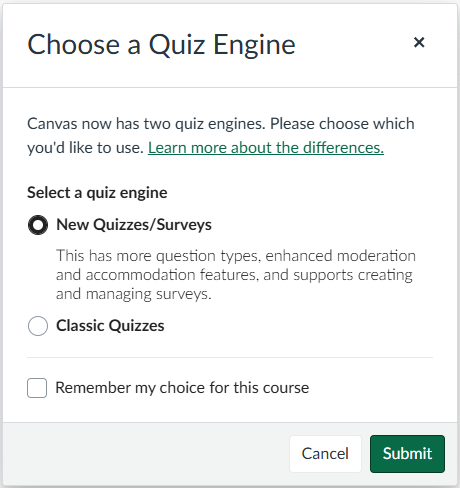
Step 2: Build the Assessment Using the “Essay” Question Type
1. In the quiz editor, you will have an opportunity to configure the details of your assessment, including the assignment points and group. Once these settings are right for your course, click Build to begin developing the content of your quiz.
2. New Quizzes in Canvas allows for a variety of question types. To allow video responses, select the Essay question type. Note that video responses in Canvas are not compatible with the use of Respondus Lockdown Browser.
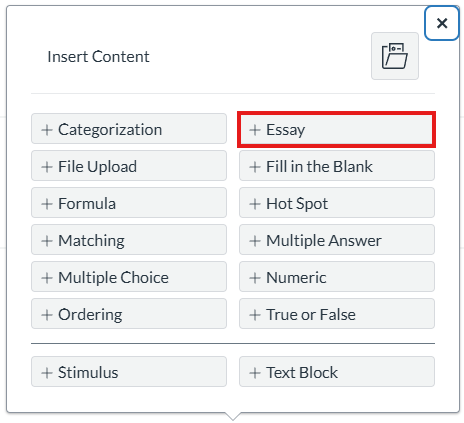
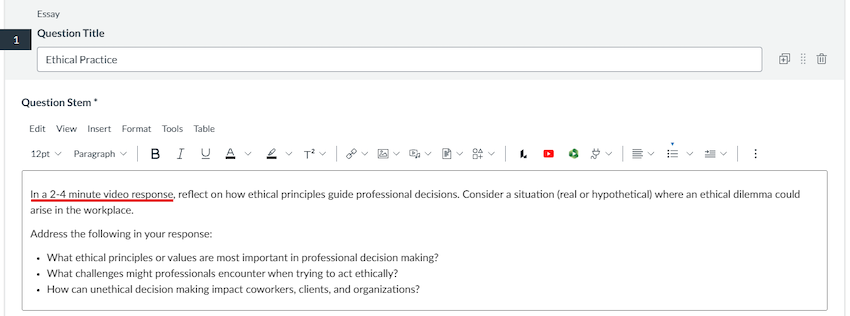
3. Enter your question title and prompt in the fields provided. Ensure the prompt clearly communicates to students that they are expected to submit their responses in a video format.
|
Sample Instructions for Students: When you finish recording, you can either save your video or re-record it. Once you have saved your recording, click Submit to complete your response. You may record multiple attempts, but only one video can be submitted. To avoid losing your work, be sure to submit your final recording before the quiz time limit expires. |
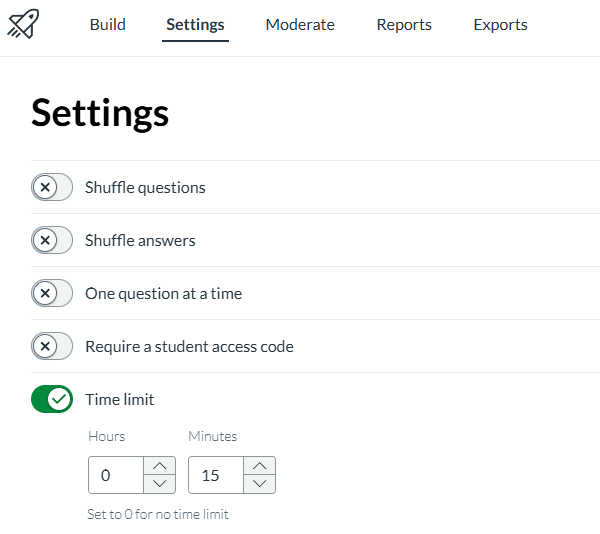
4. Navigate to the quiz settings and set a time limit for the assessment. This is recommended to help support academic integrity. Please note that video responses do not submit automatically when time expires; students must accept and submit their response before the deadline to avoid losing their responses.
5. Apply time accommodations as needed through Assign Access and Moderate settings.
Step 3: Prepare Students for Success
Oral assessment tasks, including video quiz responses, may be unfamiliar to many learners. Prior to the assessment, instructors should clearly review expectations with students and take time to demonstrate how to record and submit responses in Canvas. It is also recommended that instructors provide an ungraded practice oral quiz so students can familiarize themselves with the recording process, technology requirements, and response format before completing the graded assessment.
When responding to the quiz question, students can select the media icon in the response field toolbar to upload or record their video response.

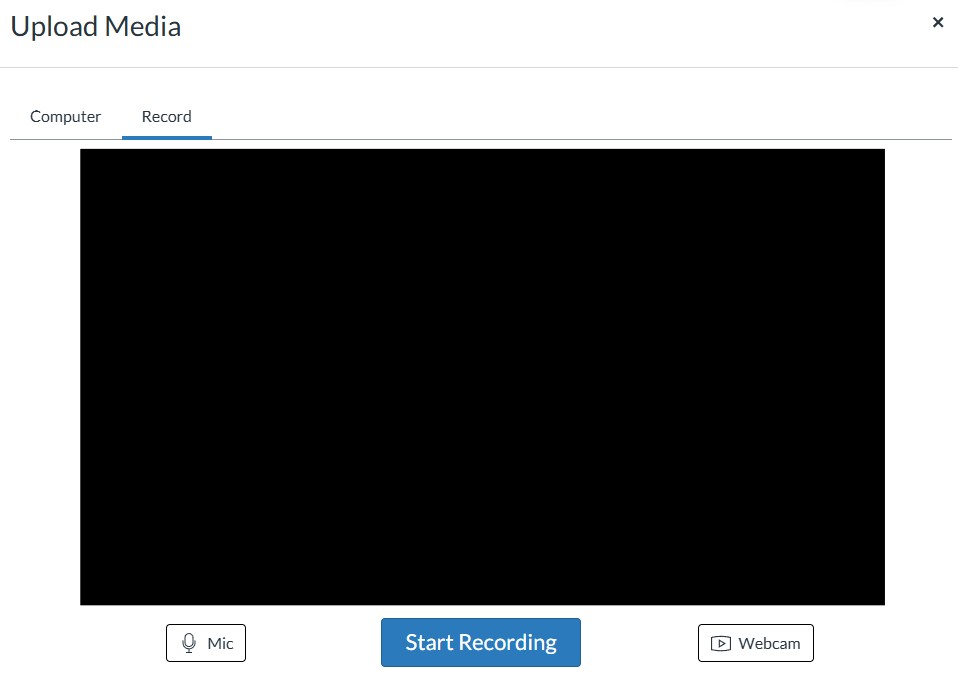
Once students complete their recording, they can save it, and the video will automatically attach to their quiz response. Students may create multiple recordings within the allotted time limit; however, only one submission is permitted unless the instructor has enabled multiple attempts.
Tips for Effective Design and Implementation of Oral Quizzes
Schedule Effectively
Carefully consider the requirements for students’ video responses. Provide an availability window and/or set an assessment time limit that gives students sufficient time to complete the task while also supporting academic integrity.
- Example: If the oral quiz contains the same questions for all students, consider using a short availability window (e.g., 30 minutes) during a scheduled class period. This helps ensure students independently complete the assessment at the same time and reduces opportunities to share questions or prepare responses in advance.
The Canvas Quiz should be available to all students at the same time to promote academic integrity and encourage independent reflection. *Please note that video responses are incompatible with Respondus Lockdown Browser.
Ensure Fairness
- Provide students with instruction and practice on how to record and submit video responses prior to the assessment.
- Share question topics or themes in advance to support student preparation.
- Consider using item banks in Canvas to vary questions for each student.
- Consider necessary accommodations for diverse learners, given the pressures of timed and recorded assessments.
- Reflect on what students need to demonstrate and ensure the evaluation criteria align with course learning outcomes. Compared with pre-planned presentations, oral quizzes may place less emphasis on professionalism and greater emphasis on evidence of learning.
To get started, consider some of the question types below.
| Question Type | Description |
|---|---|
| One-way interview | Students address a series of prompts in a Q&A format. |
| Case study | Students analyze a provided scenario by applying course concepts. |
| Task walk-through | Students record themselves completing a task, describing their actions and decisions in real-time. |
| Reflection | Students record a personal reflection in relation to a prompt. |
| Authentic decision-making | Students are presented with a real-world scenario and several response options. They record a video explaining the decision they would make in a professional context and justifying their choice. |
The Gwenna Moss Centre for Teaching and Learning (GMCTL) supports USask educators in implementing secure and authentic assessment practices.
Whether you are interested in incorporating oral quizzes and exams in Canvas, adapting existing assessments, or developing new assessment strategies that promote academic integrity and student learning, our team is available to assist. Contact gmctl@usask.ca to discuss your goals and discover options for your course.
Title image credit: pexels.com | @yankrukov
This article was created with the assistance of AI tools, as described in the GMCTL AI Disclosure Statement.